
Gemini to Obsidian - Chrome Extension
Export and backup your Google Gemini conversations to Markdown files for Obsidian. The ultimate Chrome Extension to bulk export thousands of conversations with smart deduplication.
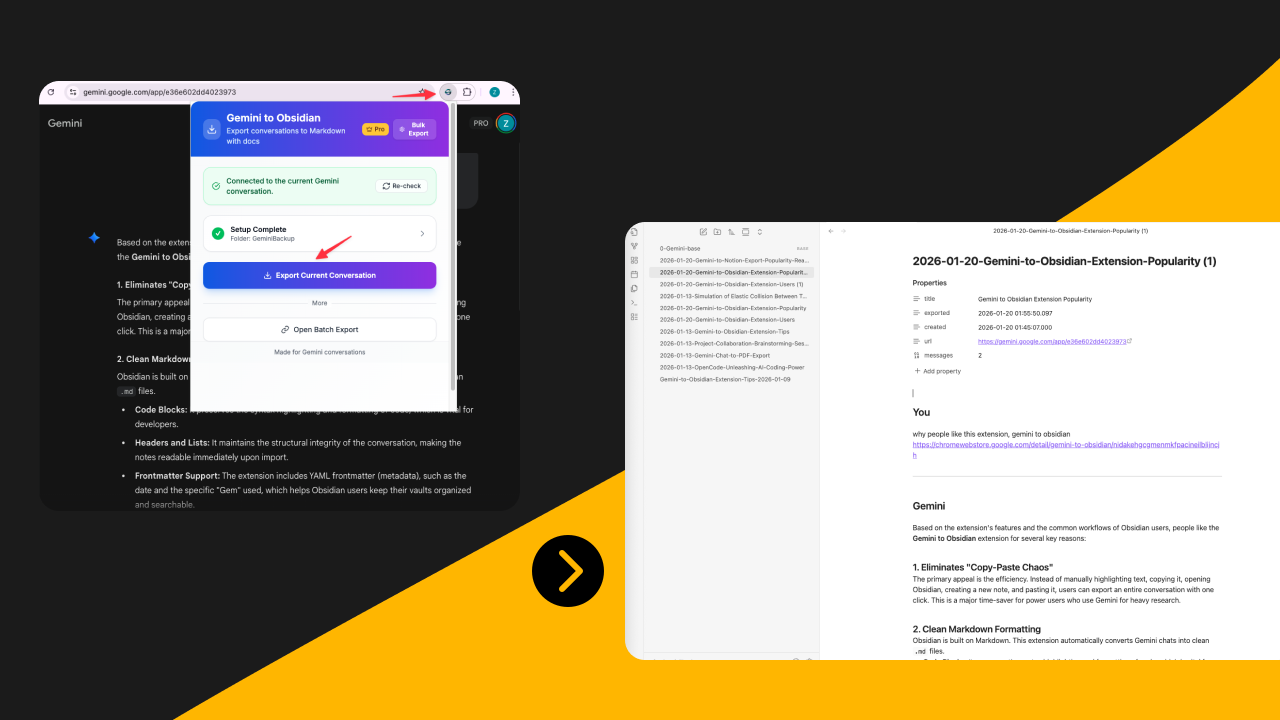
Knowledge workers love Gemini to Obsidian for its simplicity, speed, and clean Markdown output.
Key Features
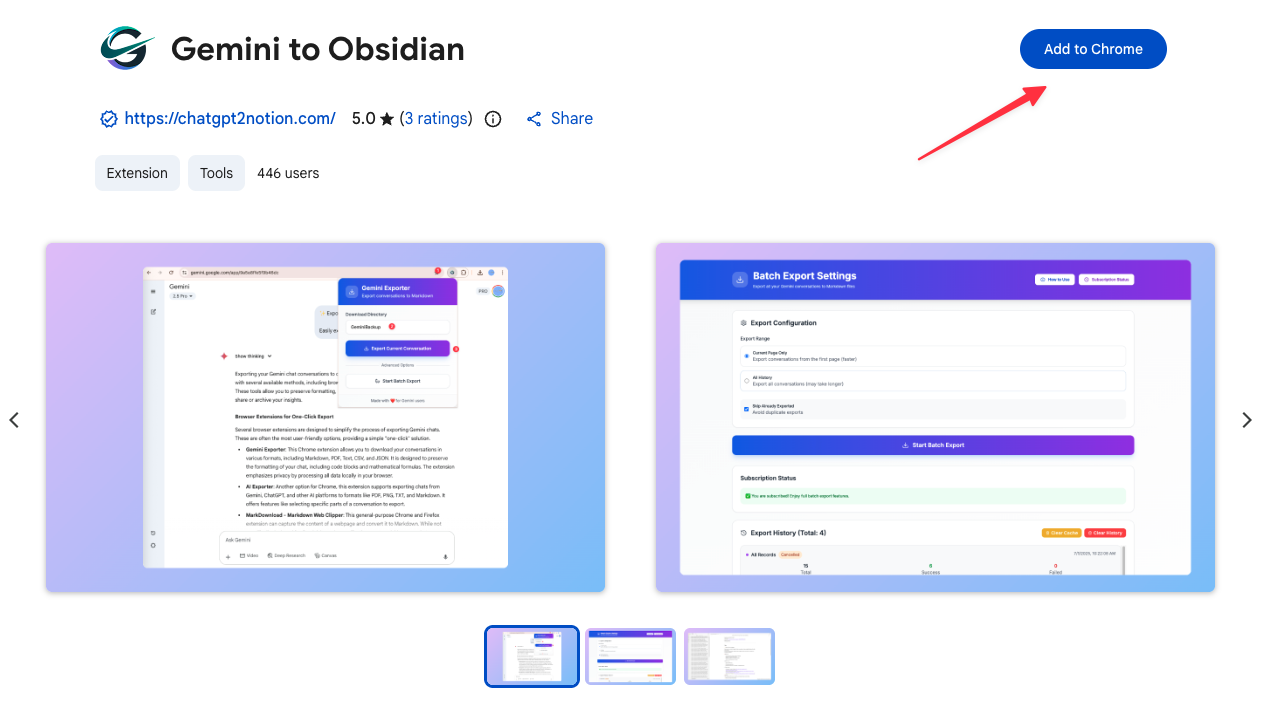
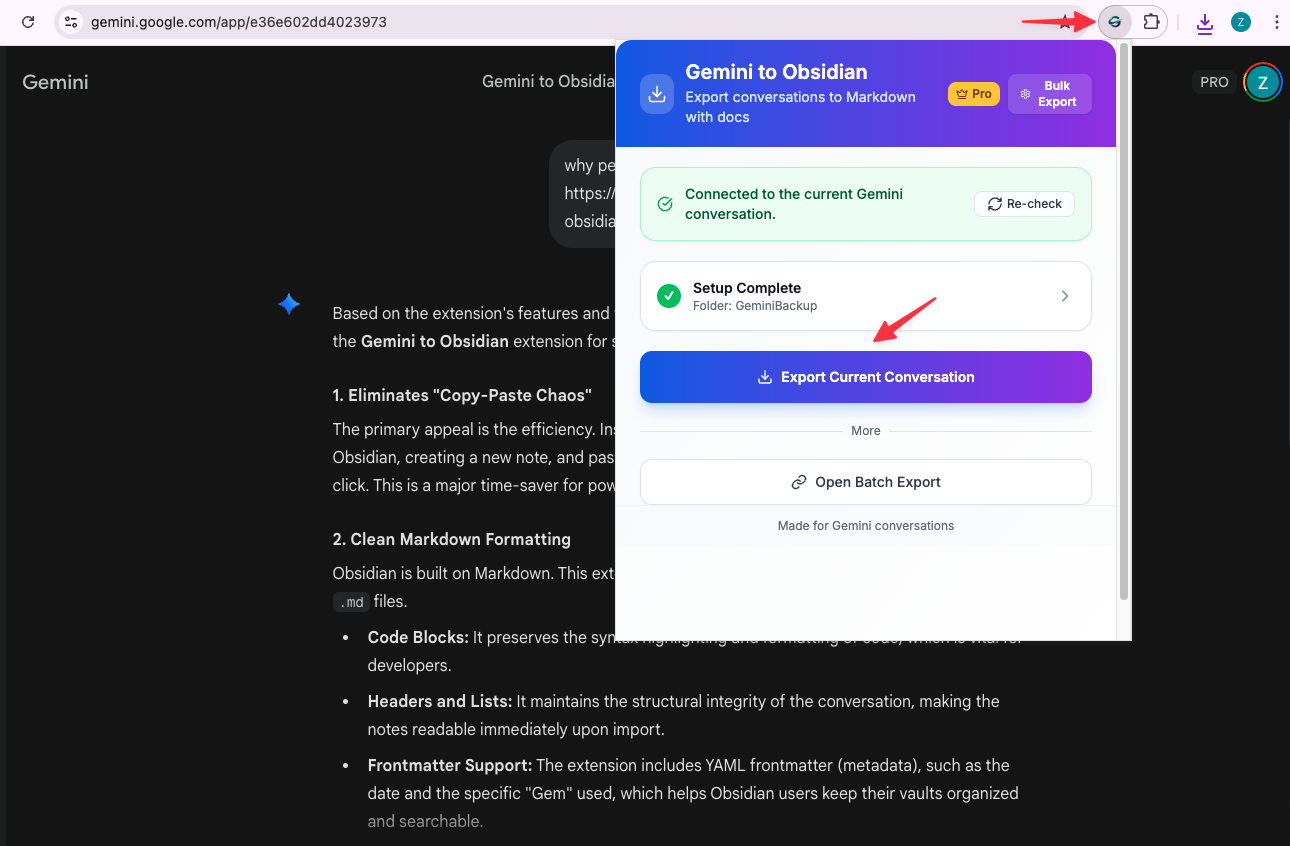
One-Click Export to Markdown
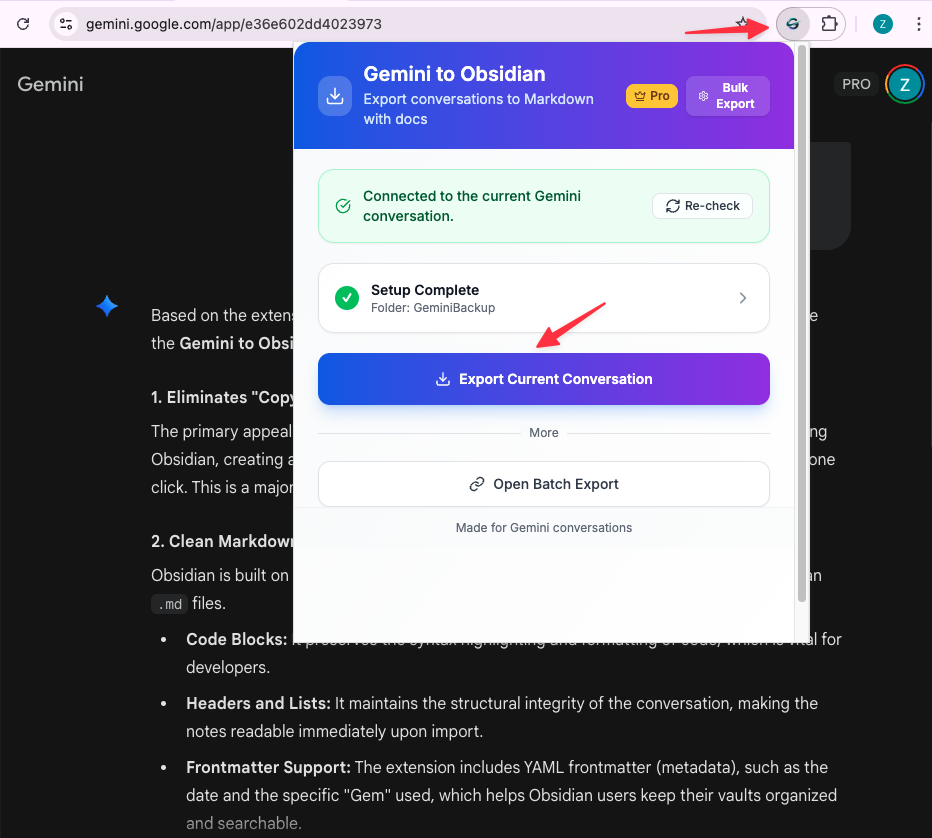
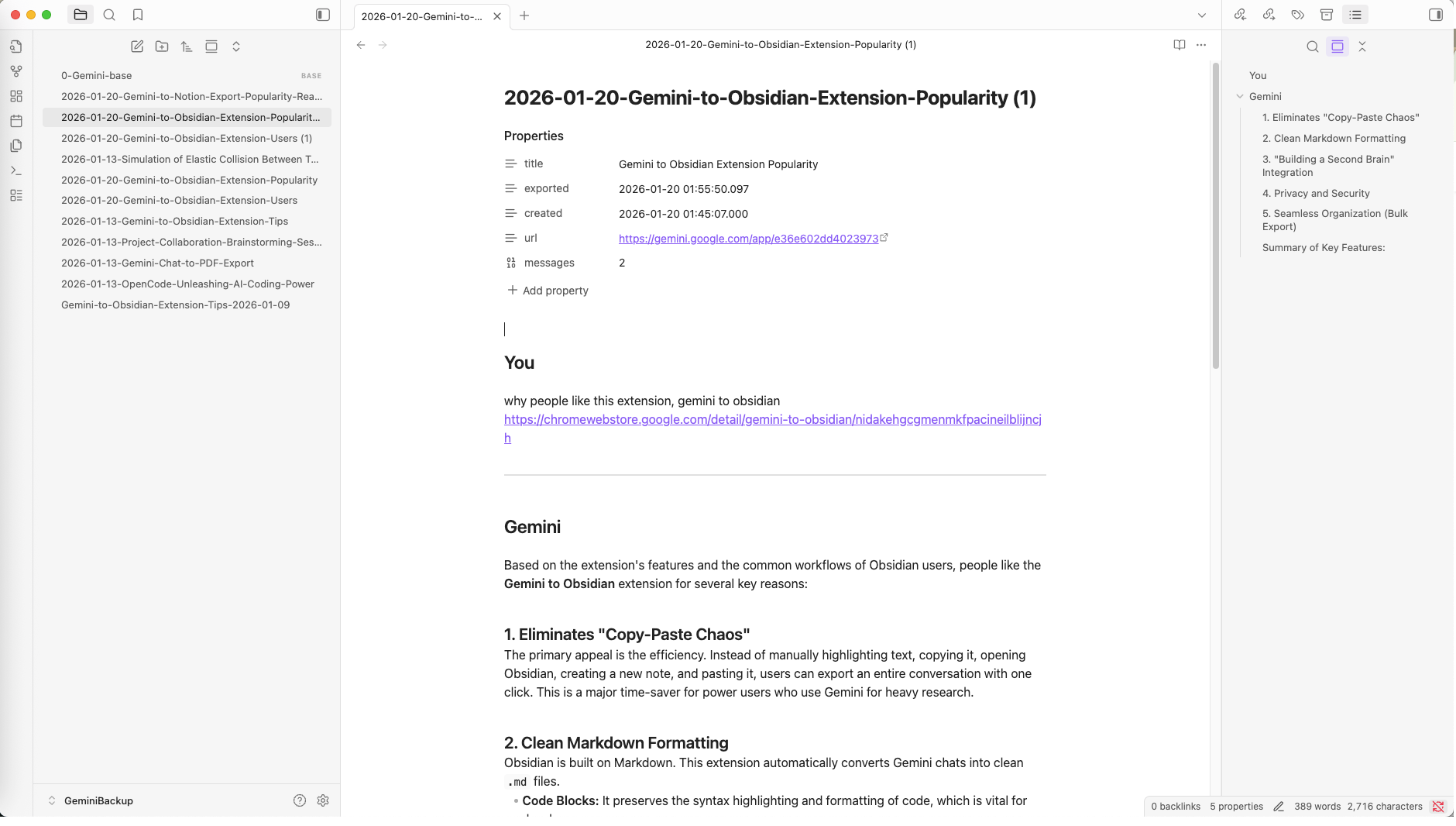
Export any Gemini conversation to a clean Markdown file instantly. Perfect for importing into Obsidian, your personal knowledge base, or any Markdown editor.
Batch Export with Smart Deduplication
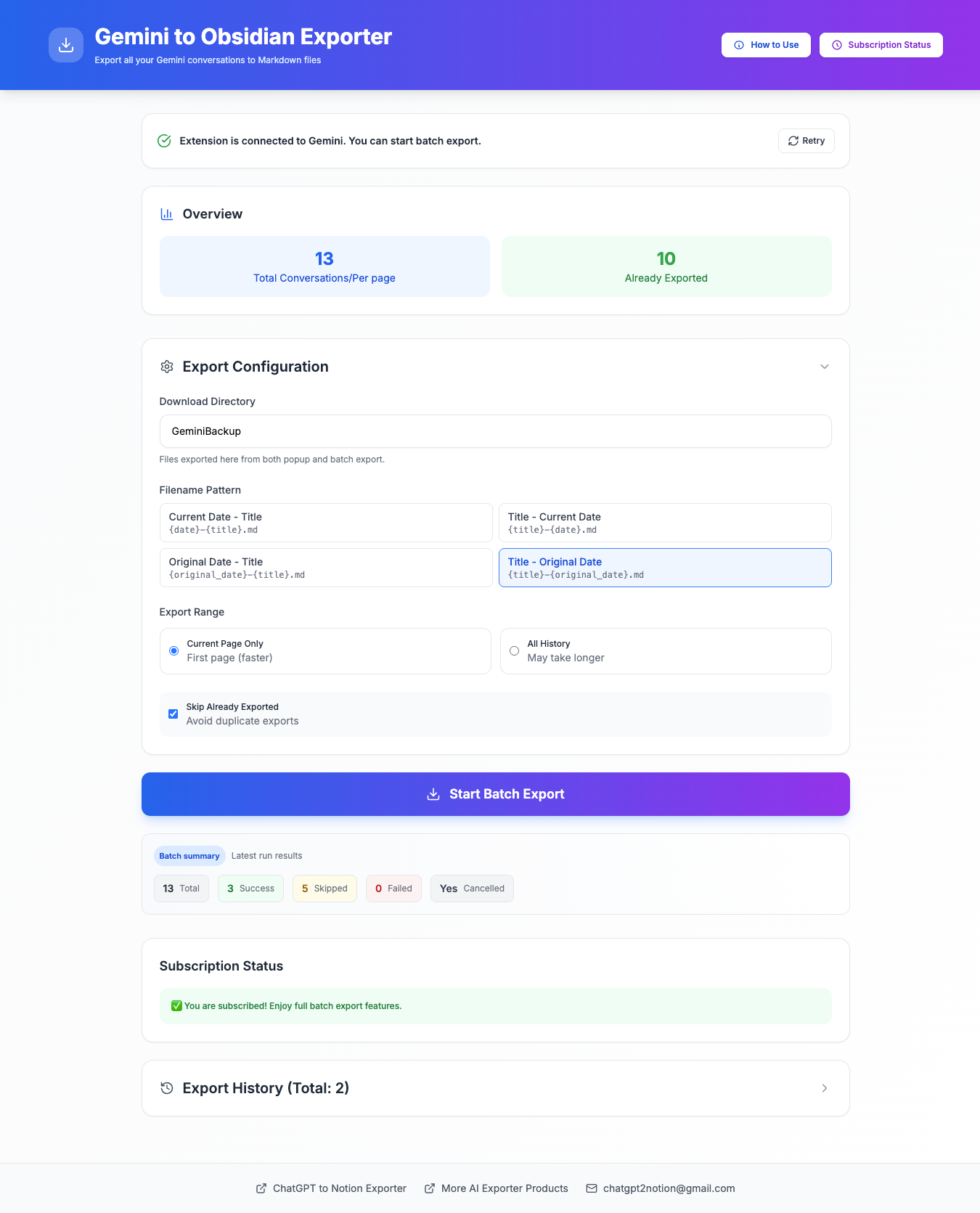
Export your entire Gemini history in bulk. Smart deduplication prevents re-exporting conversations you've already saved, saving time and keeping your vault clean.
Custom Download Directory
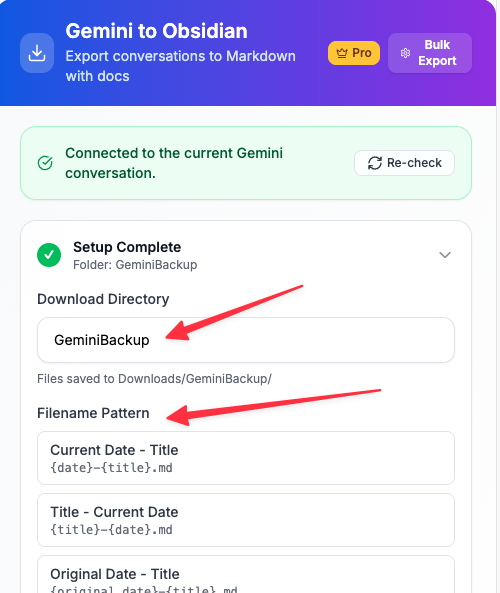
Set your Obsidian vault folder as the download directory. All exports go directly to your knowledge base, ready to link, tag, and organize.
Key Features of Gemini to Obsidian
Everything you need to organize your Gemini conversations quickly and efficiently.
Clean Markdown Format
Preserves code blocks, formatting, and structure. Compatible with Obsidian, Notion, and any Markdown editor.
Smart Deduplication
Tracks exported conversations to avoid duplicates. Re-export only new chats when syncing your history.
Custom Download Directory
Point exports directly to your Obsidian vault. No manual file moving required.
Batch Export History
Export all conversations from current page or fetch your entire chat history across multiple pages.
Export Progress Tracking
Real-time progress display shows success, failures, and skipped items during batch operations.
Export History Log
View detailed records of past exports with timestamps, counts, and file links.
Timestamped Filenames
Files named with ISO timestamps and conversation titles for easy sorting and searching.
100% Local & Private
All processing happens in your browser. No data sent to external servers. Your conversations stay yours.
How it Works
What Users Say About Gemini to Obsidian
Real workflows, backed up to Obsidian.
"Perfect for building a research knowledge base. I export all my Gemini research sessions directly to Obsidian and link them to my notes."
"Code blocks export cleanly. I use this to archive technical discussions and reference them later in my Obsidian vault."
"Batch export saved me hours. I exported my entire Gemini history to Obsidian in minutes, and the deduplication feature is brilliant."
"I use Gemini for study help and export everything to Obsidian. Having all my AI conversations searchable in one place is a game-changer."
"Clean Markdown output means I can easily share exported chats with my team or import them into other tools."
"The custom download directory feature is perfect. Everything goes straight to my Obsidian vault without manual file management."
What's New
=🐛 Fixed: Improved error messaging and Gemini sub-document retrieval.
=🚀 NEW: Batch export with smart deduplication and export history tracking.
=🚀 NEW: Custom download directory support for Obsidian vault integration.
Frequently Asked Questions About Gemini to Obsidian
Have another question? Contact us on Discord or by email.
How do I export Gemini chats to Obsidian?
Install the extension, optionally set your Obsidian vault as the download directory, then click 'Export Current Chat' on any Gemini conversation. The Markdown file will be saved directly to your vault.
Can I export my entire Gemini history?
Yes. Open the extension options page and use the batch export feature. You can export the current page or fetch all history across multiple pages.
Does it work with Obsidian?
Absolutely. The extension exports clean Markdown files that are fully compatible with Obsidian. Set your vault folder as the download directory for seamless integration.
Will it re-export conversations I've already saved?
No. The extension tracks exported conversation IDs and skips them during batch exports. You can disable this in settings if you want to re-export.
Is my data secure?
Yes. All processing happens locally in your browser. No data is sent to external servers. Your conversations remain completely private.
What format are the exported files?
Standard Markdown (.md) files with ISO timestamp and conversation title in the filename (e.g., '2026-01-18T14-30-00-My-Conversation.md').
Can I customize the download location?
Yes. In the extension popup, you can set a custom download directory. Point it to your Obsidian vault for automatic integration.
Does it preserve code blocks and formatting?
Yes. Code blocks, formatting, and conversation structure are preserved in clean Markdown format.
How many conversations can I export?
Free users can export up to 10 conversations per batch session. Pro users have unlimited exports.
Can I see what I've already exported?
Yes. The extension options page shows a detailed export history with timestamps, counts, and links to exported files.
Unlock Unlimited Power
Batch export 100+ chats, Auto-Sync, and priority support with Universal Pass.
Get Universal Pass